Back to tips
Understanding the Interface
Get familiar with Zed's clean interface. Learn about panels, sidebars, and how to navigate the workspace efficiently
#interface
#workspace
#basics
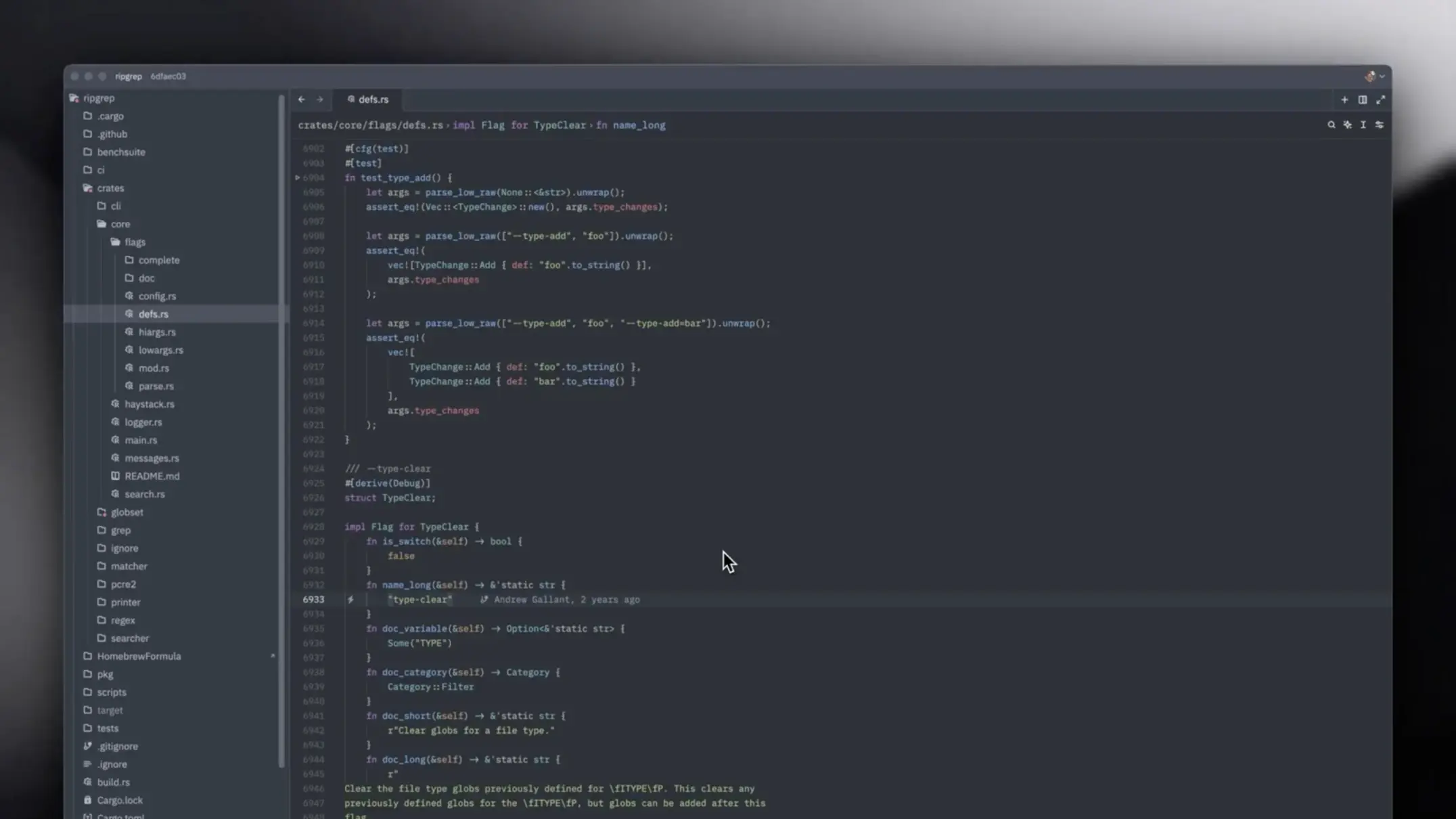
Zed’s minimalist interface is designed for maximum productivity with minimal distractions. Understanding the layout and panels will help you navigate efficiently.
Main Interface Components
Editor Area
The central workspace where you write code:
- Tabs at the top show open files
- Gutter on the left shows line numbers and Git changes
- Minimap on the right provides file overview (optional)
- Status bar at the bottom shows file info
Keyboard Navigation
Cmd + 1, 2, 3...
# Switch between editor panes

Cmd + W
# Close current tab

Cmd + Shift + T
# Reopen closed tab
Sidebar
File Explorer
Cmd + B
# Toggle sidebar

Shows:
- Project files
- Search results
- Git status
- Extensions
Sidebar Navigation
Cmd + Shift + E
# Focus file explorer

Cmd + Shift + F
# Focus search

Cmd + Shift + G
# Focus Git panel
Panel Areas
Bottom Panel
Cmd + J
# Toggle terminal/panel

Contains:
- Integrated terminal
- Problems/diagnostics
- Output logs
- Debug console
Panel Management
Cmd + Shift + Y
# Toggle problems panel

Cmd + Shift + U
# Toggle output panel
Workspace Layouts
Split Editors
Cmd + \
# Split editor vertically

Cmd + K, Cmd + \
# Split editor horizontally
Adjust Split Sizes
Drag the divider between splits
Or use keyboard shortcuts in settings
Customizing the Interface
Hide/Show Elements
{
  "ui": {
    "show_line_numbers": true,
    "show_git_diff_gutter": true,
    "show_breadcrumbs": true,
    "show_minimap": false
  }
}
Compact Mode
Maximize code space:
{
  "ui": {
    "density": "compact",
    "tabs": {
      "file_icons": true,
      "git_status": true
    }
  }
}
Breadcrumbs
Navigate file structure:
Shown at the top of editor
Click to jump to sections
Shows current symbol/function
Using Breadcrumbs
Click on any breadcrumb item
→ See dropdown with siblings
→ Quick navigation within file
Status Bar
Information Displayed
- Current line and column
- File encoding
- Line ending type (LF/CRLF)
- Language mode
- Git branch
Clickable Items
Click language mode
→ Change language/syntax

Click line ending
→ Change LF/CRLF

Click encoding
→ Change file encoding
Command Palette
Your gateway to all features:
Cmd + Shift + P
# Open command palette

Type to search:
- Commands
- Settings
- Actions
- Files
Common Commands
> theme: select
> view: toggle...
> git: ...
> format: document
Zen Mode
Distraction-free coding:
Cmd + K, Z
# Toggle Zen Mode

Hides:
- Sidebar
- Panels
- Tabs (optional)
- Status bar (optional)
Customize Zen Mode
{
  "zen_mode": {
    "hide_tabs": true,
    "hide_status_bar": false,
    "hide_line_numbers": false,
    "center_layout": true
  }
}
Quick Access
Jump to File
Cmd + P
# Quick file picker
Jump to Symbol
Cmd + Shift + O
# Symbol picker (current file)

Cmd + T
# Workspace symbol search
Jump to Line
Ctrl + G
# Go to line number

Type line:column (e.g., "42:10")
Pro Tips
- Master keyboard shortcuts to avoid using mouse
- Customize your layout based on task (coding vs debugging)
- Use Zen mode for deep focus sessions
- Pin frequently used files in tabs
- Arrange splits for comparing files side-by-side
- Collapse folders in file tree to reduce clutter
- Use breadcrumbs for quick navigation within large files
- Customize status bar items to show what matters to you