
Back to tips
File Search Mastery
Learn to quickly find and open files in large projects using fuzzy search and filters
#search
#files
#navigation
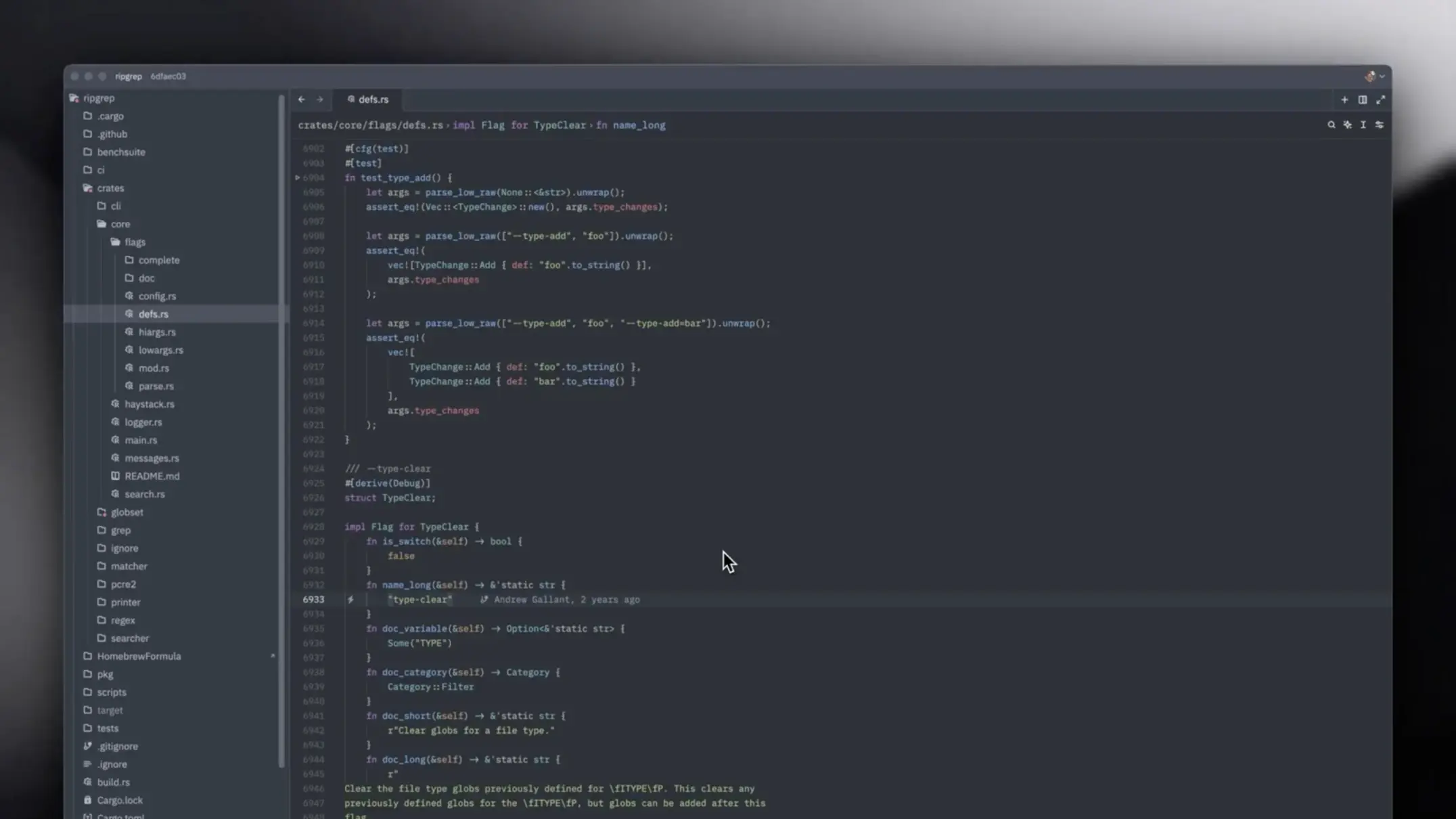
Navigating large projects efficiently requires mastering file search techniques. Zed’s fuzzy finder and advanced filters make finding any file lightning-fast.
Quick File Picker
The fastest way to open files:
Cmd + P
# Open quick file picker

Start typing any part of the filename
No need for exact matches!
Fuzzy Matching Examples
You don’t need to type the exact filename:
Type: "usrctrl"
Matches: "UserController.ts"

Type: "apidoc"
Matches: "api/documentation.md"

Type: "cfg"
Matches: "config.json", "app.config.ts"
Advanced File Search
Search by Path
Include directory names in your search:
src/comp/but
# Finds: src/components/Button.tsx
File Type Filtering
Add extension to narrow results:
user.ts
# Only TypeScript files containing "user"

style.css
# Only CSS files
Project-Wide File Browser
Open the file tree:
Cmd + B
# Toggle sidebar with file browser

Use arrow keys to navigate
Press Enter to open
File Tree Navigation
Cmd + Shift + E
# Focus on file explorer

Type to filter files in current directory
Cmd + Down - Expand folder
Cmd + Up - Collapse folder
Recent Files
Quickly switch between recently opened files:
Cmd + E
# Show recent files

Or:
Ctrl + Tab
# Cycle through recent files
Search Filters and Patterns
Glob Patterns
Use wildcards in search:
**/*.test.ts
# All test files

src/**/index.tsx
# All index files in src
Exclude Patterns
Ignore certain directories:
{
    "file_scan_exclusions": [
        "**/.git",
        "**/node_modules",
        "**/dist",
        "**/.next"
    ]
}
Pro Tips
- Use abbreviations: Type capital letters of camelCase names (e.g., “UC” for “UserController”)
- Recent locations: Zed remembers where you were in each file
- Split navigation:
Cmd + Clickopens file in new split - Symbol search:
Cmd + Tto search for functions/classes across files - Workspace symbols: Access any symbol in your project instantly
- Set custom ignore patterns in settings to exclude generated files