Back to tips
Compare Marked Files
Compare two files side-by-side using the project panel context menu
#files
#diff
#comparison
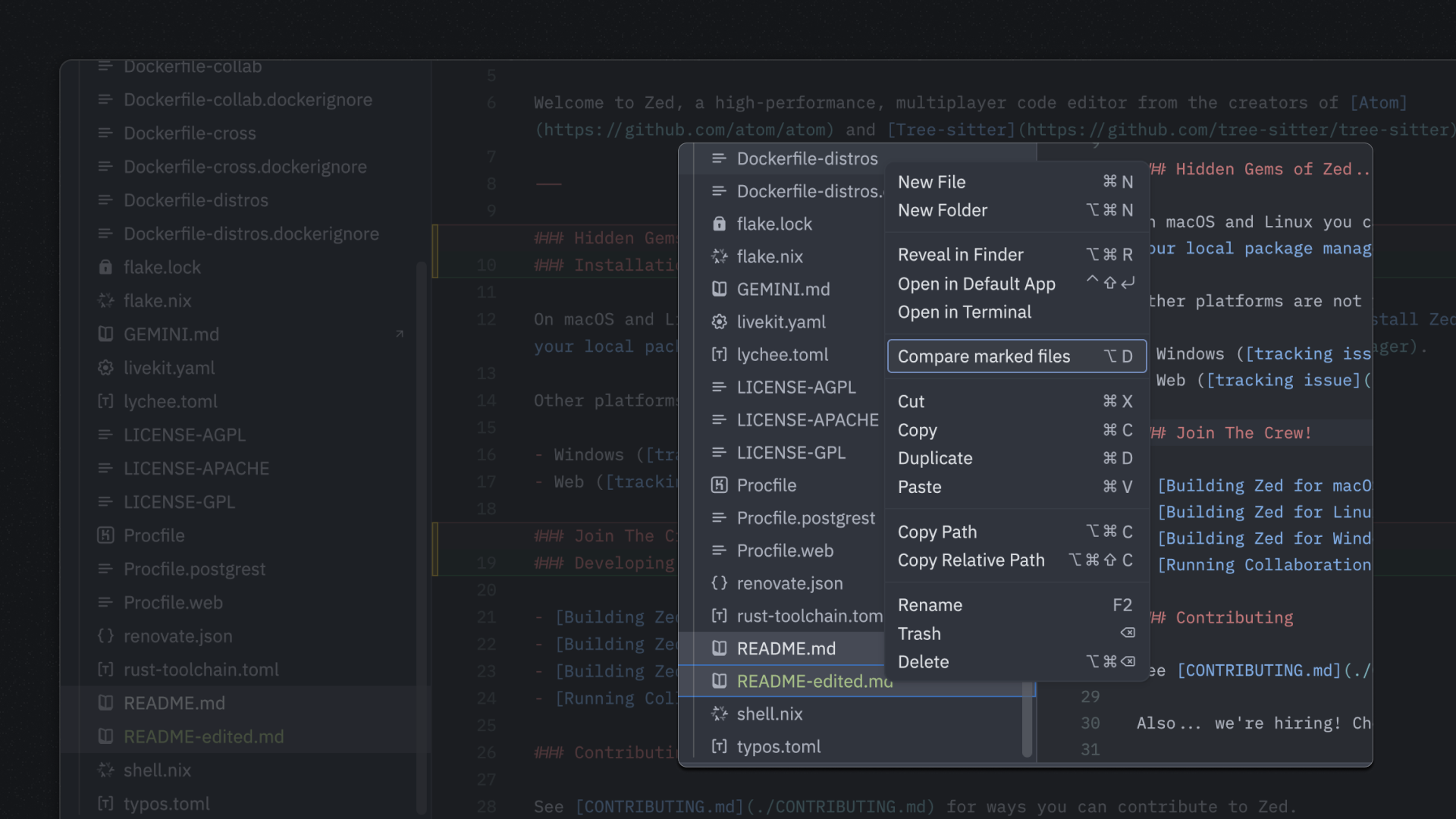
Need to compare two files? Zed makes it easy with the Compare Marked Files feature in the project panel context menu.
Here’s how to use it:
- Select the first file in the project panel
- Hold
Cmd(macOS) orCtrl(Linux/Windows) and click the second file to mark both - Right-click on either selected file
- Choose Compare Marked Files from the context menu
Zed will open a side-by-side diff view showing the differences between the two files, making it easy to spot changes and similarities.
This is particularly useful when comparing configuration files, reviewing different versions of a document, or checking implementations across similar files.