Select and Test Audio Devices for Collaboration
Choose specific microphones and speakers for Zed's built-in collaboration
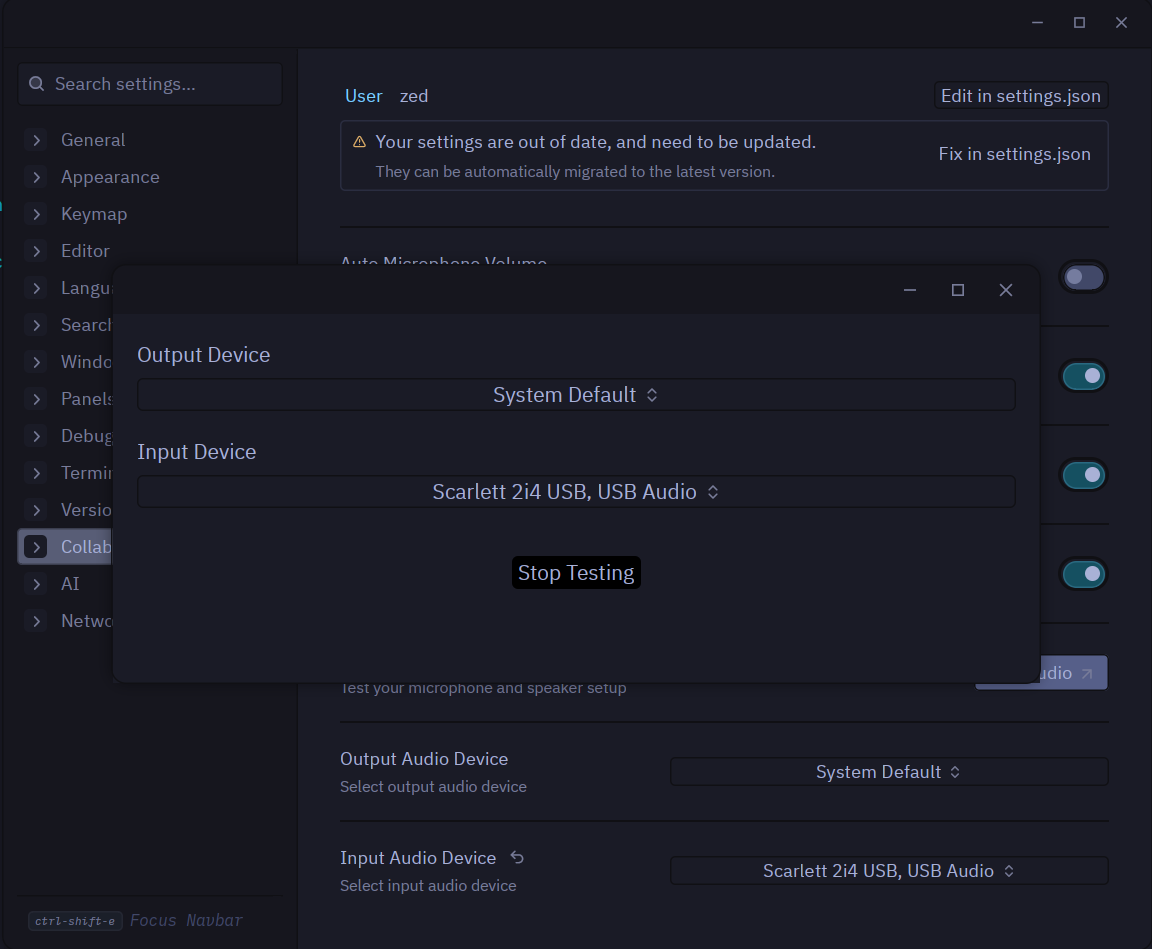
When using Zed’s collaboration features, you can now select specific audio input and output devices, and test them before joining calls.
How to Use
- Open Settings (
Cmd-,on macOS,Ctrl-,on Linux/Windows) - Navigate to the Collaboration page
- Select your preferred input device (microphone)
- Select your preferred output device (speakers/headphones)
- Click Test to verify your setup with a playback loop
The test feature routes your microphone input directly to your speakers, so you can hear yourself and confirm everything works.
Why This Matters
Device Control: Use external USB audio interfaces, specific headsets, or any available device.
Pre-Call Testing: Verify your audio setup before joining collaboration sessions.
Multi-Device Workflows: Switch between different audio setups based on your environment.
Linux Support: Especially useful on Linux where audio routing can be complex.
This is invaluable when working remotely with multiple audio devices, external interfaces, or when you need reliable audio for pair programming sessions.