
Back to tips
Agent Context Menu for Quick Additions
Add context to agent with mouse-friendly dropdown menu
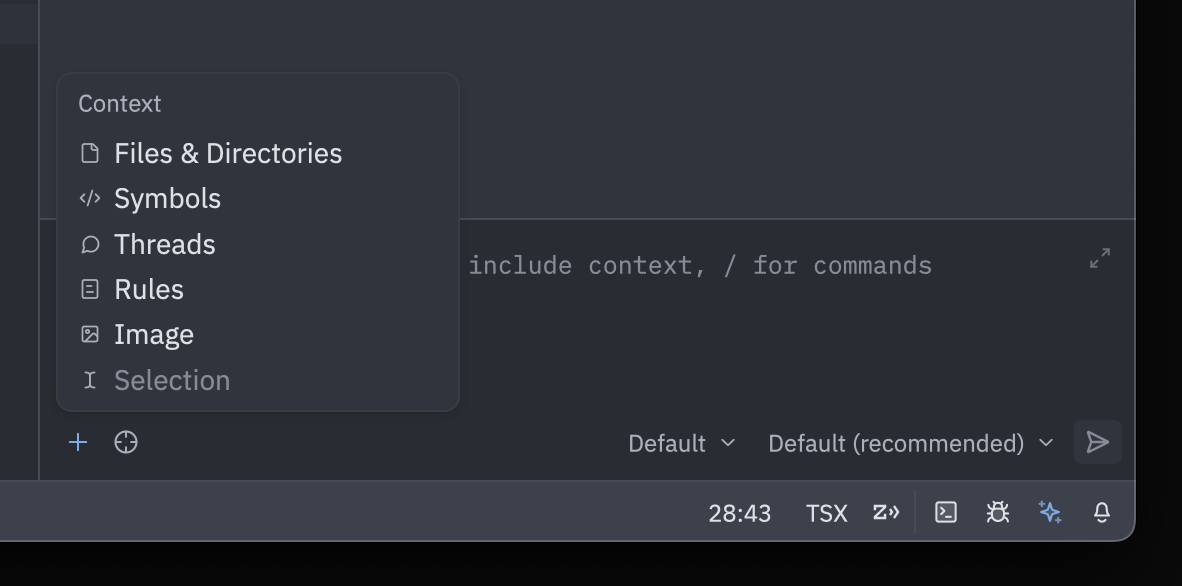
The agent panel now includes a context menu accessed via the + button, making it easier to add context with your mouse instead of typing @ mentions.
What’s in the Menu
The + dropdown displays all available context options:
- @mentions: Files, diagnostics, selections, etc.
- Images: Attach screenshots or images
- Selections: Include selected code
- Future features: Skills and custom context (coming soon)
How to Use
- Click the
+button in the agent message editor - Browse available context options in the dropdown
- Select the context you want to add
- Context is automatically inserted into your message
All menu options are also available by typing @ in the message editor.
Why This Matters
Discoverability: See all available context types without memorizing @ commands.
Mouse-friendly: Add context without switching to keyboard.
Visual feedback: Preview what context is available before adding.
This menu serves as foundation for upcoming features like custom skills and advanced context management.