
Back to tips
Terminal Integration
Set up and use the integrated terminal effectively. Run commands, manage processes, and stay in your flow
#terminal
#shell
#integration
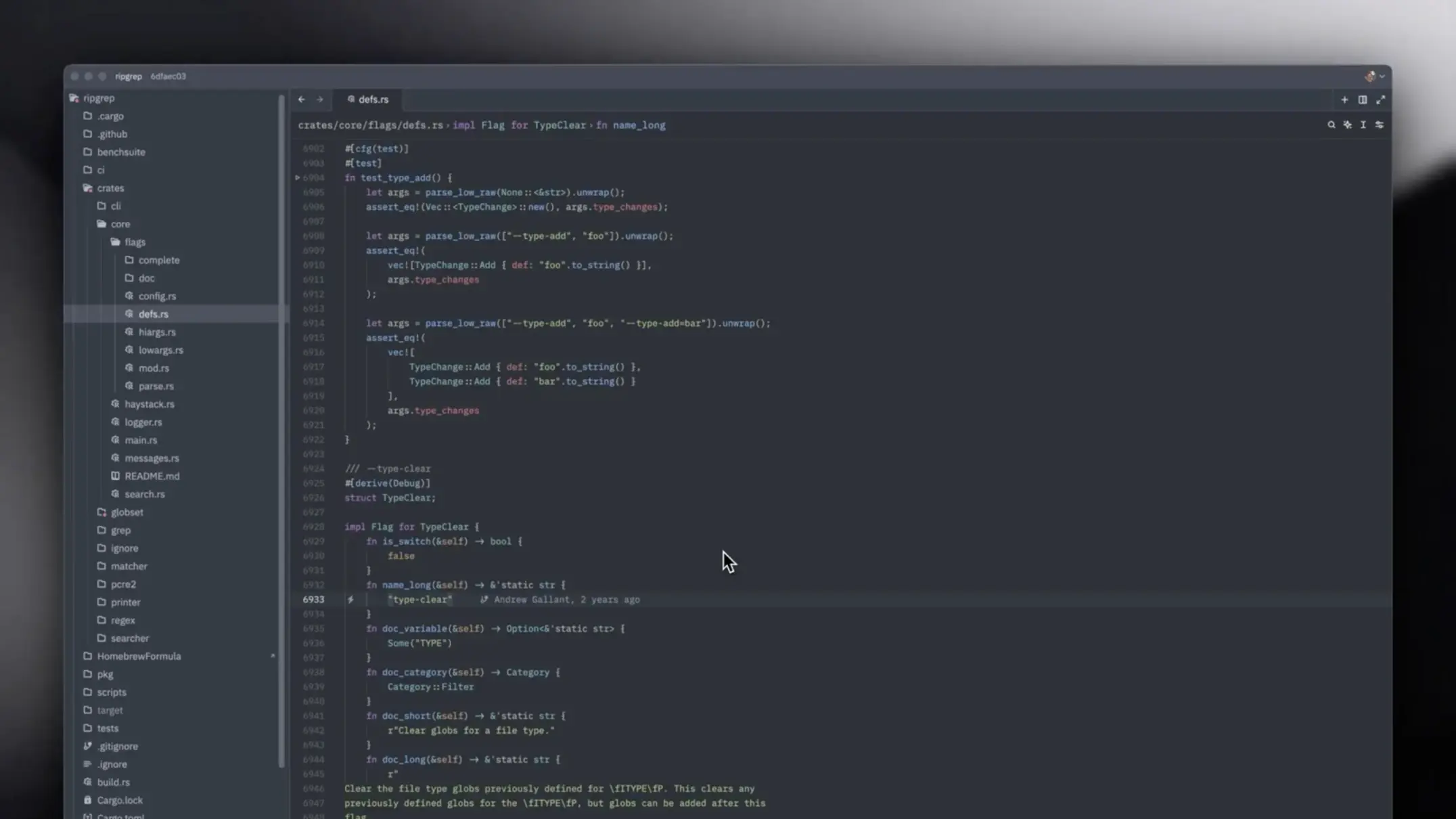
Zed’s integrated terminal keeps you in your coding flow without switching to external terminal applications. Learn to maximize your productivity with built-in terminal features.
Opening the Terminal
Basic Terminal Access
Cmd + J
# Toggle terminal panel

Ctrl + `
# Alternative shortcut (backtick)
Multiple Terminal Instances
Cmd + Shift + J
# Open new terminal tab

Cmd + T (in terminal)
# New terminal in current panel
Terminal Configuration
Shell Selection
Configure your preferred shell in settings:
{
  "terminal": {
    "shell": {
      "program": "zsh",
      "args": ["-l"]
    }
  }
}
Appearance Customization
{
  "terminal": {
    "font_family": "JetBrains Mono",
    "font_size": 14,
    "line_height": 1.5,
    "blinking": "terminal_controlled",
    "alternate_scroll": "off"
  }
}
Environment Variables
{
  "terminal": {
    "env": {
      "PATH": "/usr/local/bin:$PATH",
      "EDITOR": "zed"
    }
  }
}
Terminal Features
Copy and Paste
Cmd + C
# Copy selected text

Cmd + V
# Paste into terminal
Text Selection
Click and drag to select
Double-click to select word
Triple-click to select line
Search in Terminal
Cmd + F (in terminal)
# Search terminal output

Enter / Shift + Enter
# Navigate search results
Working Directory
Open Terminal in Current File’s Directory
Right-click in editor
→ "Open Terminal Here"

Or:
Cmd + Shift + P → "terminal: open in current directory"
Change Directory Quickly
The terminal automatically:
- Opens in project root by default
- Can be configured to follow active file
{
  "terminal": {
    "working_directory": "current_project_directory"
  }
}
Running Tasks
Common Development Tasks
# Start development server
npm run dev

# Run tests
npm test

# Build project
npm run build

# Git operations
git status
git commit -m "message"
git push
Background Processes
Run long-running processes:
# Start and detach
npm run dev &

# View running jobs
jobs

# Bring to foreground
fg %1
Splitting and Layouts
Split Terminal
Cmd + \
# Split terminal horizontally

Cmd + Shift + \
# Split terminal vertically
Navigate Between Splits
Cmd + 1, 2, 3...
# Jump to specific terminal

Or use mouse to click
Terminal Tabs
Tab Management
Cmd + T
# New tab

Cmd + W
# Close current tab

Cmd + Shift + [/]
# Switch between tabs
Rename Tabs
Right-click on tab
→ "Rename Tab"

Give it a descriptive name for easy identification
Advanced Features
Command History
# Navigate history
Up/Down arrows

# Search history
Ctrl + R
Type to search previous commands
Terminal Links
Click on:
- File paths to open in editor
- URLs to open in browser
- Line numbers to jump to location
Clear Terminal
Cmd + K
# Clear scrollback

Or type: clear
Pro Tips
- Use aliases in your shell config for common commands
- Set up custom commands in Zed’s task runner
- Split terminals to monitor multiple processes
- Bookmark frequent commands using shell history
- Configure colors to match your theme
- Use tmux/screen for persistent sessions
- Set working directory to follow active file
- Customize prompt (PS1) for better context