
Back to tips
Tree View in Git Panel
Navigate changed files in a hierarchical tree structure
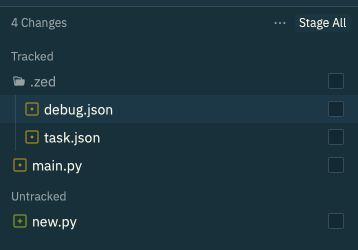
The Git panel now supports Tree View, making it easier to navigate and understand file changes organized by directory structure.
How to Switch Views
- Open the Git panel with
Cmd+Shift+G(macOS) orCtrl+Shift+G(Linux/Windows) - Look for the view toggle button in the panel header
- Switch between:
- Flat View: All files in a flat list
- Tree View: Files organized by directory hierarchy
Benefits of Tree View
Better Organization
- See changes grouped by folder
- Understand the scope of changes at a glance
- Navigate large changesets more easily
Familiar Structure
- Matches your project’s directory layout
- Expand/collapse folders to focus on specific areas
- Quickly locate files in deeply nested structures
Use Cases
- Large Refactorings: Easily see which directories were affected
- Feature Work: Group related file changes together
- Code Reviews: Understand change context by folder
- Multi-Module Projects: Navigate between different modules
Switch views based on your workflow—use flat view for quick scans, tree view for organized exploration.