
Back to tips
Essential Keyboard Shortcuts
The must-know shortcuts every Zed user should master
#shortcuts
#productivity
#basics
#beginner
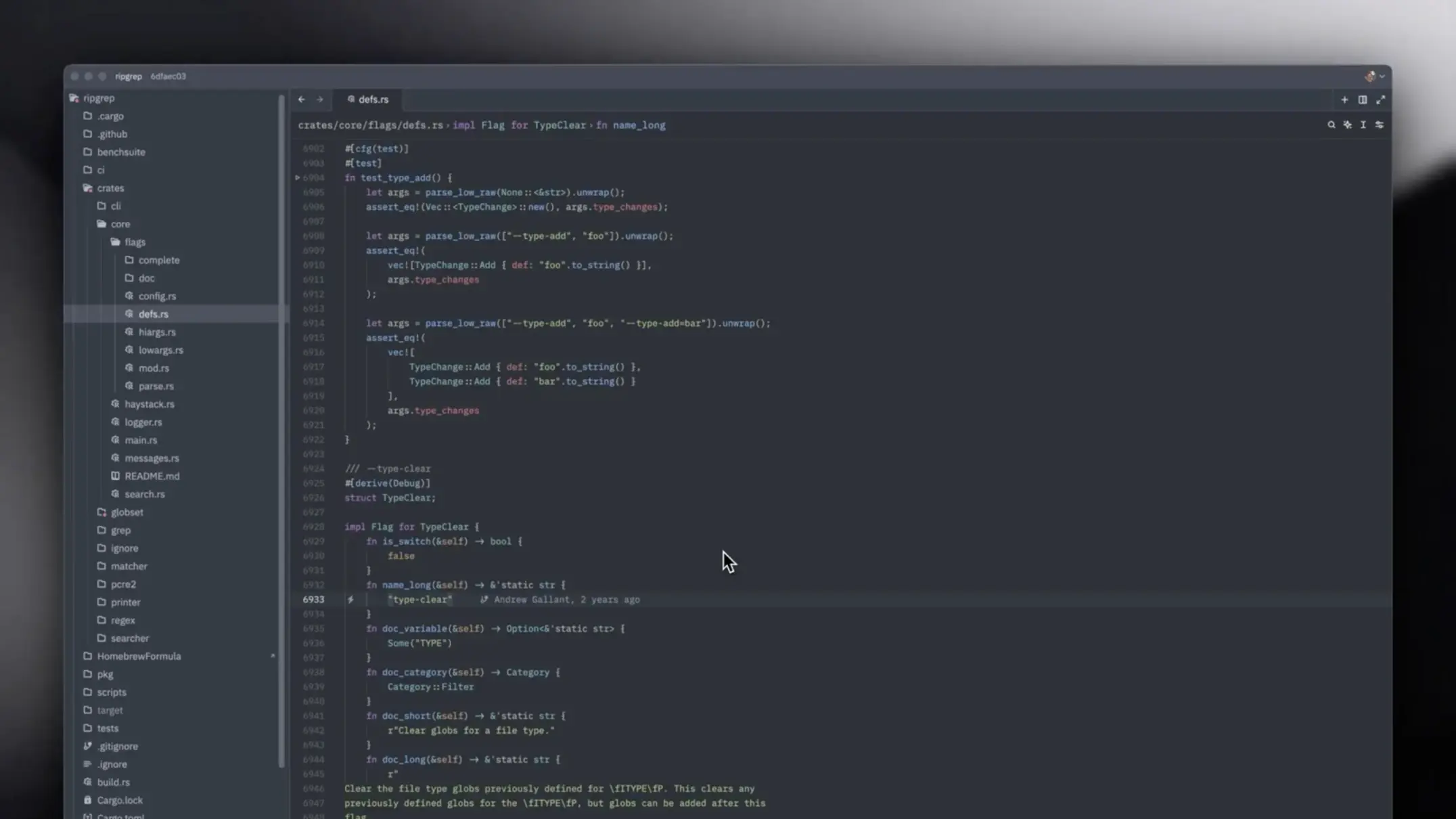
Mastering keyboard shortcuts is the first step to becoming a Zed power user. These essential shortcuts will transform how you interact with the editor.
File Operations
Create and Open Files
Cmd + N
# Create new file
Cmd + O
# Open file dialogCmd + P
# Quick file picker (fuzzy search)Save Files
Cmd + S
# Save current file
Cmd + Shift + S
# Save all open filesEditing Shortcuts
Basic Editing
Cmd + X / C / V
# Cut / Copy / Paste
Cmd + Z / Shift + Z
# Undo / RedoLine Operations
Cmd + D
# Duplicate line or selection
Cmd + Shift + K
# Delete lineAlt + Up/Down
# Move line up or downSearch and Replace
Cmd + F
# Find in current file
Cmd + Shift + F
# Find in all filesCmd + H
# Replace in current fileCommand Palette
The command palette is your gateway to all Zed features:
Cmd + Shift + P
# Open command palette
# Search for any command or action
Window and Panel Management
Cmd + B
# Toggle sidebar
Cmd + J
# Toggle terminal panelCmd + \
# Split editorCmd + 1/2/3
# Switch between editor splitsPro Tips
- Cmd + , opens settings
- Cmd + K, Cmd + S shows all keyboard shortcuts
- Customize any shortcut via settings to match your workflow
- Use Cmd + Shift + P then type “shortcut” to access the keyboard shortcuts editor
Practice Makes Perfect
Don’t try to memorize all shortcuts at once. Start with file operations and basic editing, then gradually add more as they become muscle memory. Focus on the shortcuts you use most frequently.